Initial Screen Overview: ISOBUS Operation View
The Virtual Terminal is a screen that lets operators interact with their implements by displaying information provided by the equipment controllers. This means you can use one Virtual Terminal with any ISOBUS-compliant equipment.
Below are examples of ISOBUS applications in two different ISOBUS-compliant devices:
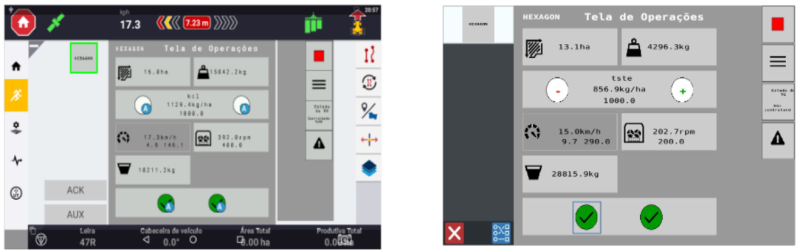
We will start by exploring the functionalities present on the initial screen of the Virtual Terminal.
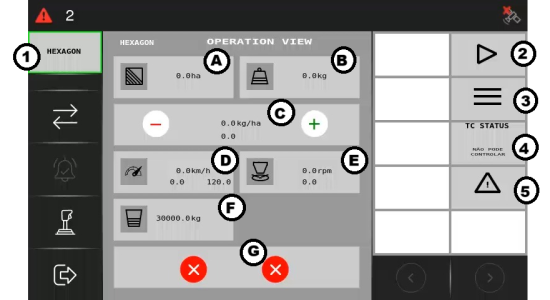
-
Active implement: Shows the active implement.
-
Master key: Serves as the main control for initiating and/or pausing the application.
-
Configurations menu: On this menu, you can access diagnostic screens, settings, and system settings.
-
TC Status: Defines how the implement interacts with the Task Controller. It has five states determined by specific software sensors.
-
Alarm view: Click on the alert icon to access all active alarms and obtain more detailed information on troubleshooting the problem.
Now that you've reviewed the initial screen, you’ll go through the alarm types before we explore each function in detail.